Case study · personal project
The everyday edits,
in one app, on your Mac
Making a short video sound and look good takes a handful of small jobs: clean the audio, lift the voice, add captions, drop in some text or a logo, join a few clips. The tools for them are scattered across the internet, hard to keep track of, and they add up. So I built one app that does the lot, with the AI running on the Mac itself.
- first caption, after 10 s of silence
- 10,040 ms
- before the fix
- ~1 s early
The problemCopy link to this section
Most people making a reel don’t want a professional editing suite. They want the same handful of things every time: remove the traffic noise, make a quiet voice loud enough, get captions on screen, add a title or a logo, and stitch the clips together.
Each of those has a website or an app that does it. One removes noise, another writes captions, a third handles text. Most want an upload, an account or a monthly fee, and I couldn’t find one that writes captions the way people around me actually talk: Hindi and English in the same sentence.
The briefCopy link to this section
The requirements were short, and they drove every decision after:
- One app for the middle ground. Not a pro editor, not a filter app. The everyday jobs, done well, in one place.
- Usable by anyone. One switch per job. No settings that need a sound engineer.
- The AI runs on the Mac. No uploads, no accounts, no per-minute pricing. The footage never leaves the machine.
- Models on demand. Speech models are big. Download one the first time it’s needed, not with the app.
- Hinglish is a first-class language. Captions in the mix people really speak.
Decisions and trade-offsCopy link to this section
A middle-ground editor, on purpose
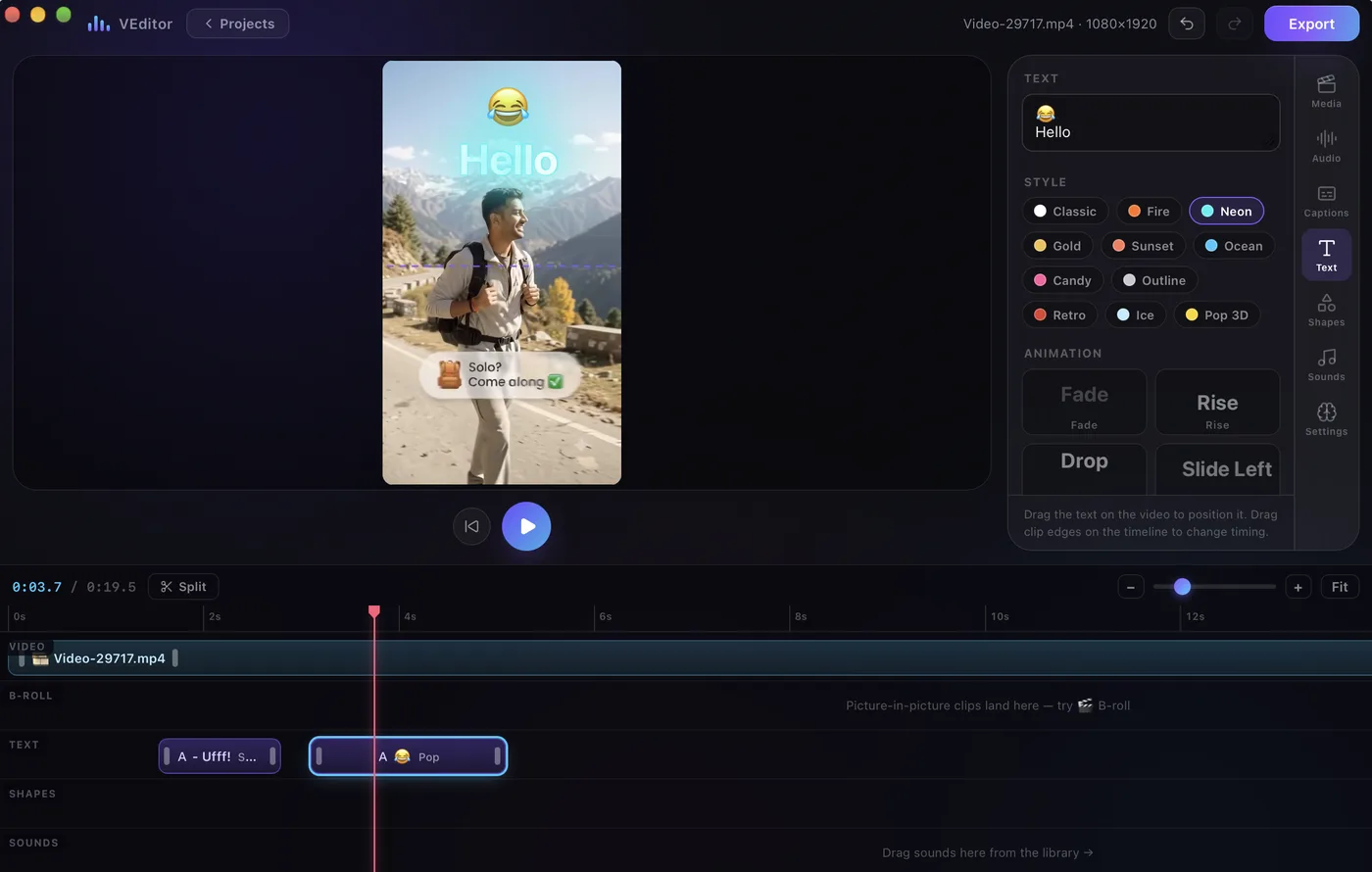
WhyThe gap isn’t at the top end. It’s the everyday edit: join and trim clips, overlay a picture or a second video, add animated text and shapes, drop in a sound effect or a music bed, crossfade between clips.
HowA multi-track timeline with split, trim, reorder and full undo, a canvas you pick up front (9:16, 1:1, 4:5, 16:9 or custom), and one panel per job. Projects save themselves as you edit.
Trade-offNo colour grading, keyframes or multi-camera editing. Anyone who needs those already has a tool for them.
Run the models on the Mac, and download them on demand
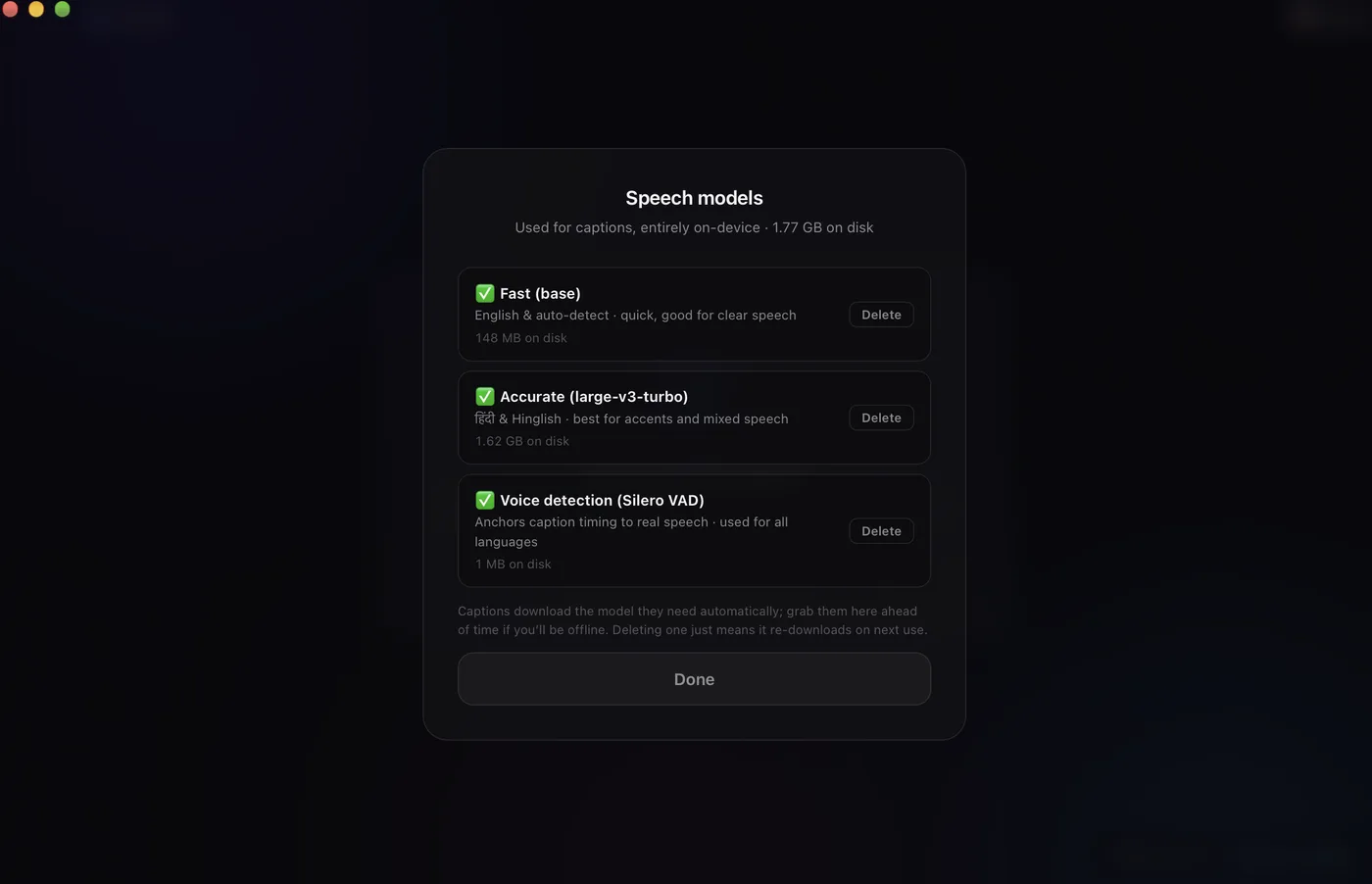
WhyOn-device means private, free to run and usable offline. It also means the models have to live on the user’s disk, and the accurate speech model is 1.6 GB.
HowThe noise-removal model is small, so it’s compiled into the app. Speech models download the first time captions need them, with real progress, and a Models panel shows what’s on disk, lets you fetch one ahead of time or delete it to get the space back.
Trade-offA wait on first use, and it leans on Apple silicon to be fast.
Captions in the language people actually speak
WhyReal speech here switches between Hindi and English mid-sentence. The small speech model’s Hindi was unusable, and forcing Devanagari script handled mixed speech worst of all.
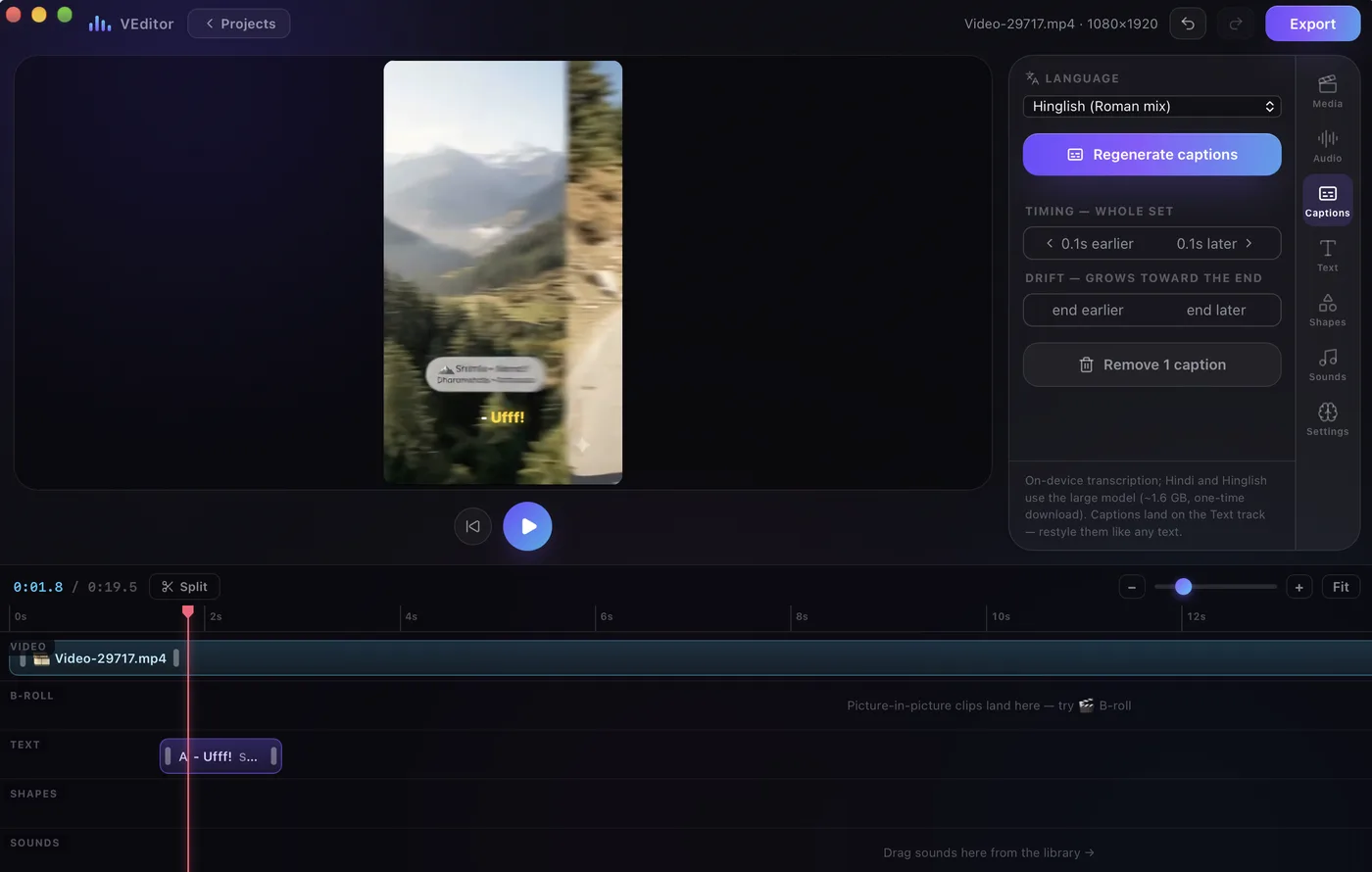
HowHindi and Hinglish use the large model. For Hinglish the app transcribes as Hindi but primes the model with a romanised prompt, so mixed speech comes out in Latin script, the way reel captions are usually written. Pure Hindi in Devanagari is still one option away.
Trade-offThe larger download. English keeps the small, fast model.
Anchor caption timing to the sound, not to the model
WhyCaptions kept appearing before the words, by up to a second after a long pause. I tried a fixed offset, then a drift slider. Both were fighting symptoms: the speech model’s clock simply can’t be trusted across a long file.
HowA tiny voice-detection model finds where speech really is. The audio is cut into chunks of at most 14 seconds, each chunk is transcribed on its own, and its exact position is added back, so a timing error can never leak across a silence. Any word still placed in silence is moved forward to the nearest rise in loudness, by up to 350 ms. And when Clean audio is on, the model listens to the cleaned track, which gives it real silence to work with.
Trade-offMore moving parts than a single transcription call. The manual nudge and drift controls stay for fine-tuning, and the default caption style reveals each word as it’s spoken, so nothing can show early.
Clean audio that doesn’t eat quiet speech
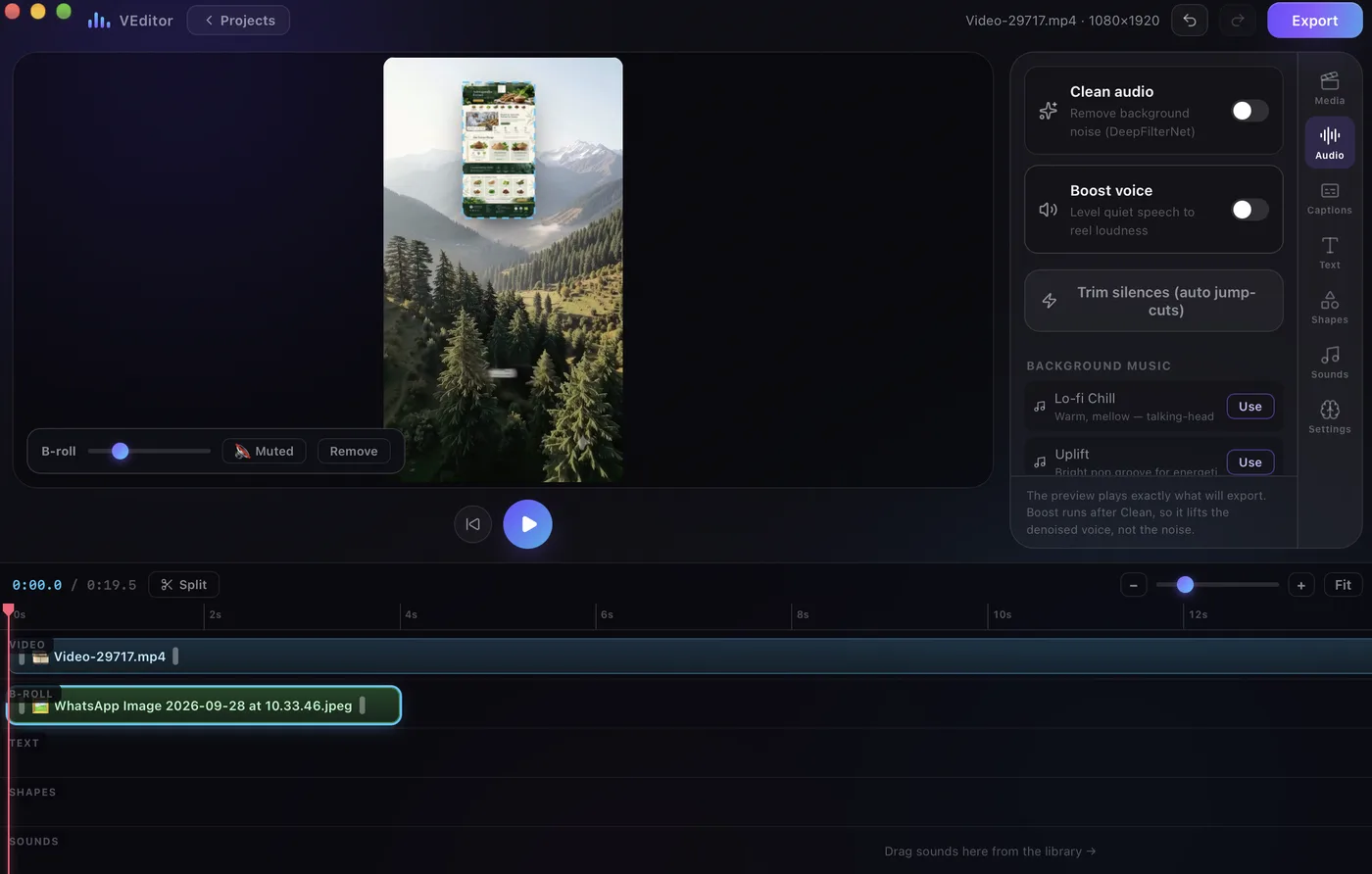
WhyNoise removal that mutes a soft voice is worse than the noise. My first version did exactly that on quiet recordings.
HowTwo fixes. The noise gate was stricter than the model’s own defaults, so quiet speech was being classed as noise; it now matches them, and a test with quiet speech over noise now keeps 93% of its level. Boost voice then lifts the result to a standard loudness (−15 LUFS) with a true-peak limit, so it gets louder without clipping. Boost runs after cleaning, so it lifts the voice, not the noise.
What you see and hear is what exports
WhyA preview that differs from the export teaches people not to trust the tool.
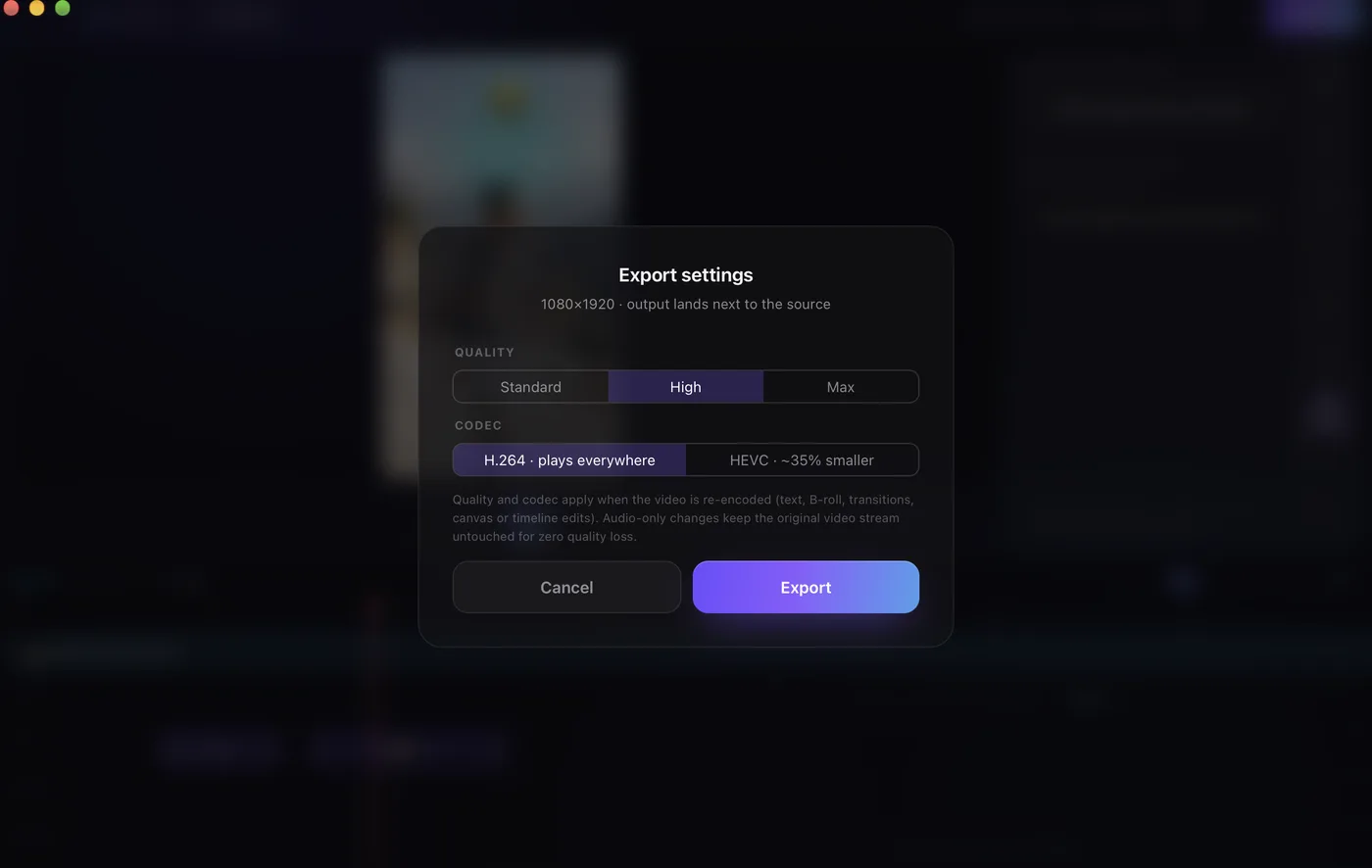
HowOne canvas renderer draws text and shapes for both the live preview and the exported frames. The preview plays the same cleaned and boosted audio files the export uses, decoded into memory so they stay locked to the video; streaming them caused dropouts. If only the audio changed, the export copies the video untouched, with no quality loss. It re-encodes only when something is drawn over the picture, on the Mac’s hardware encoder, in H.264 or HEVC.
Trade-offMusic ducking is the one honest exception: the preview approximates it, the export does it properly, and the panel says so.
Sharper video, with an honest clock
WhyPhone footage is often soft, and AI upscaling can rescue it, but it’s slow.
HowThree tools: a quick sharpen with no AI, Apple’s on-device super-resolution for upscaling, and a heavier model that redraws fine detail. Running the Apple model as a pipeline, with four frames in flight, made it about six times faster. The heavy one takes about a minute per second of video, so it runs in its own window, shows a time estimate before it starts, and never replaces the original clip on its own.
Package it like a real app
WhyAn app someone else can use can’t ask them to install anything first.
Howffmpeg ships inside the app. One script builds, signs and notarizes it, publishes the release, and feeds the in-app updater, the same route VPass for Mac takes.
Trade-offMac only, and a signing key I must never lose: without it, installed copies could not accept another update.
How a caption finds its momentCopy link to this section
The timing fix, step by step:
audio (the cleaned track, if Clean audio is on)
  → voice detection          find where speech really is
  → chunks of up to 14 s     pauses under 1.5 s are merged
  → transcribe each chunk    its exact offset is added back
  → onset snapping           a word placed in silence moves to the next rise in loudness (≤ 350 ms)
  → caption clips            on the Text track, each word revealed as it is spoken
Three days of commitsCopy link to this section
Version 0.2.0: the multi-clip timeline, clean audio, sound effects and animated text. The same day: Hindi and Hinglish captions, the model manager, Boost voice, and the caption-timing work.
Image overlays, a stock library, background music that ducks under the voice, export settings, background blur, upscaling, on-canvas rotate and resize, the in-app updater and the release script.
The Enhance tools, the faster upscaling pipeline, and trim handles for sounds.
Where it is nowCopy link to this section
VEditor isn’t released. It does the job it was built for: a talking clip goes in, and a cleaned-up, captioned short video comes out, with no upload and no subscription. Tests cover the parts that broke along the way: quiet speech surviving noise removal, a caption after ten seconds of silence landing on time, and the audio mix the export builds.
The lesson I keep is the caption one. When a fix needs a slider, it’s usually treating a symptom; the real fix was to stop trusting the model’s clock and measure the sound.