Case study · personal project
One vault for every
password and 2FA code
Passwords, authenticator apps, backup codes and recovery keys, spread across work and personal life, had become a nightmare. So I treated my own problem like a client brief, built VPass in five days, and shipped it to the App Store and the Mac.
The problem
Every service has its own idea of security. Some want an authenticator app, some send codes by SMS, some hand you a sheet of backup codes to “store somewhere safe”. Multiply that across work and personal accounts and you end up with secrets scattered across notes, browsers and apps, and no single place you trust.
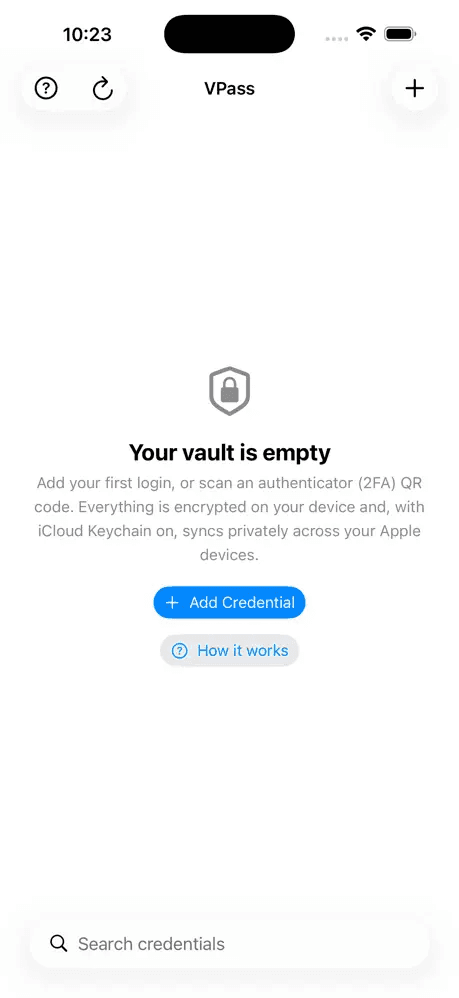
I wanted every credential and every second factor in one place, ready on whichever Apple device I’m holding, but only after proper authentication.
Treating myself as the client
Instead of hacking something together, I wrote my own requirements up as a case study first and let the constraints drive the design:
- Mine alone. Available on every device on my Apple ID, invisible to everyone else.
- No infrastructure. No servers, no accounts, no analytics, so there is nothing of mine to breach.
- No homemade cryptography. A solo project can’t go through a proper security audit, so the sensitive parts must rest on platform pieces that already have.
- Fast. Finding and copying a password or code should take seconds.
Decisions and trade-offs
Don’t reinvent the vault: use iCloud Keychain
WhyApple’s Keychain already encrypts, syncs end to end through iCloud Keychain, and sits behind Face ID, Touch ID or the device passcode. It has had far more scrutiny than anything I could build, which is what let me ship without a security audit of my own.
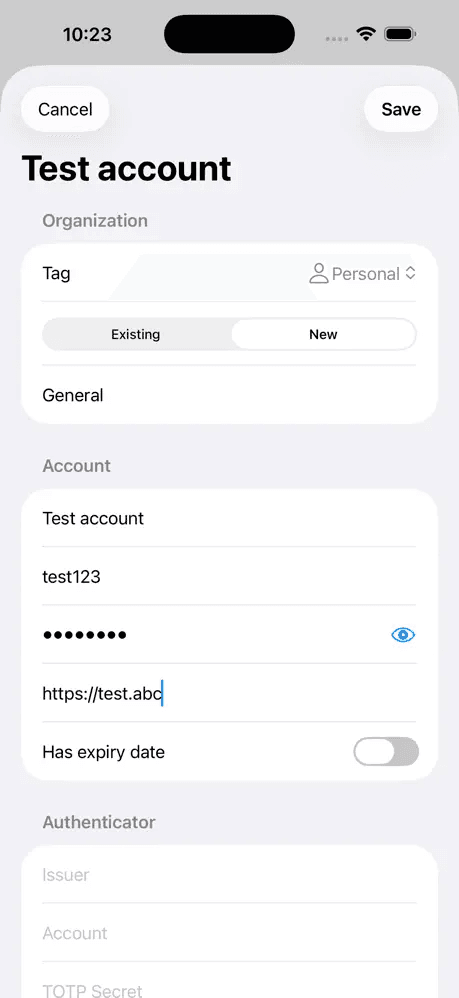
HowEach credential is serialised to JSON and stored as a synchronisable generic-password item. The iPhone and Mac apps share one Keychain access group, so they read and write the same vault.
Trade-offIt only works on Apple devices. I’m all-in on Apple, and that’s exactly who the app is for.
No server at all
WhyNo backend means no accounts to create, no database to protect, and no data leaving the user’s own devices and iCloud Keychain. The App Store privacy label is simply “no data collected”.
Trade-offNo sharing with other people and no web access. For a personal vault, that’s a feature.
Locked by default
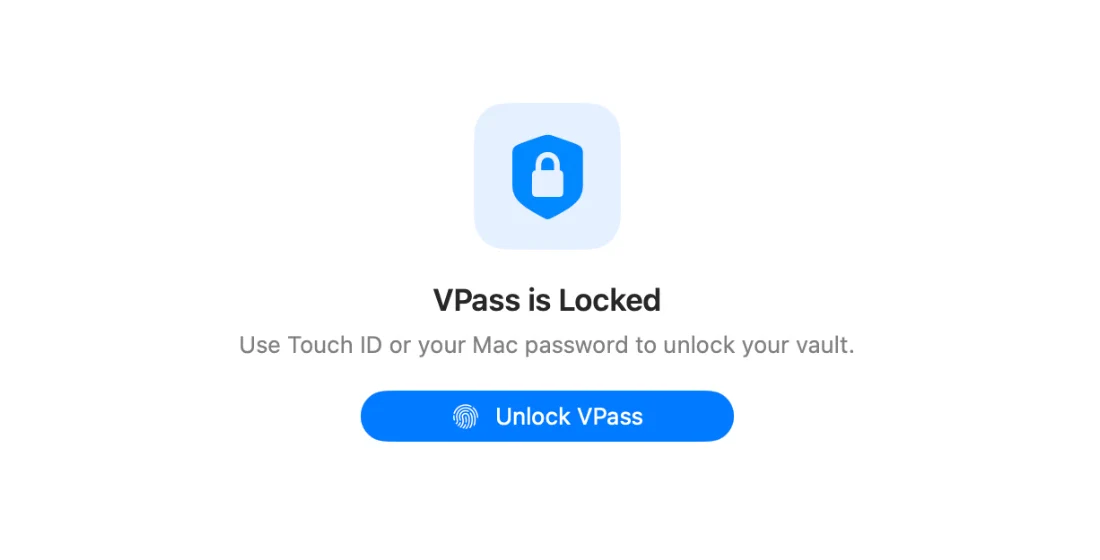
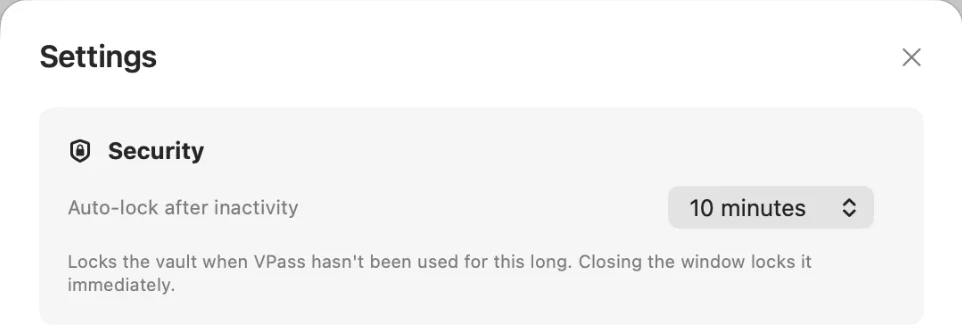
WhyA vault that stays open is only as safe as the last person near the keyboard. VPass unlocks with Touch ID, Face ID or the device password through Apple’s LocalAuthentication. On the Mac it locks again after a configurable period of inactivity (10 minutes by default), and closing the window locks it immediately.
Put the 2FA codes in the same place
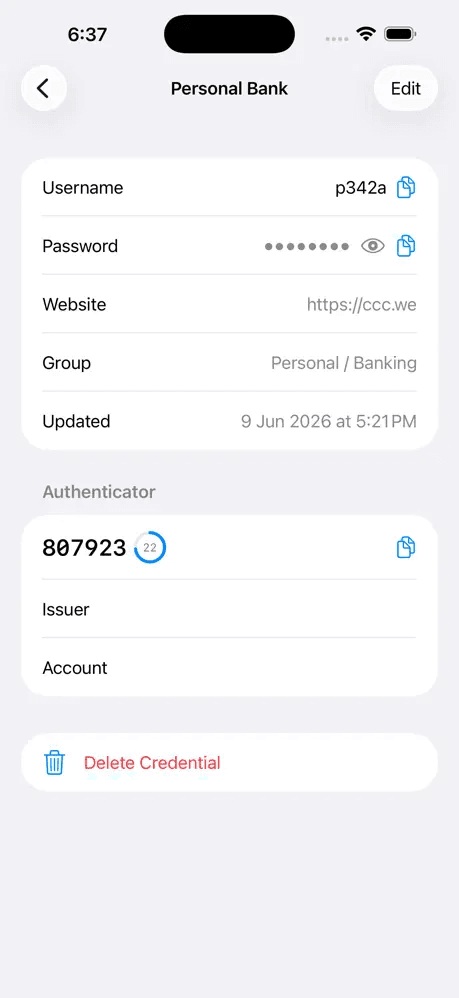
WhyHalf the pain was juggling authenticator apps. VPass generates standard time-based codes itself, with CryptoKit, and reads setup QR codes with Vision’s barcode detection: from a photo, or on the Mac, from a box you draw around a code on screen. Screen Recording permission is used only for that one action, when you start it.
Trade-offKeeping a password and its second factor side by side concentrates risk. For me the vault’s own device authentication is the real gate, and one trusted place beats five half-trusted ones.
Fast on the Mac, careful with the clipboard
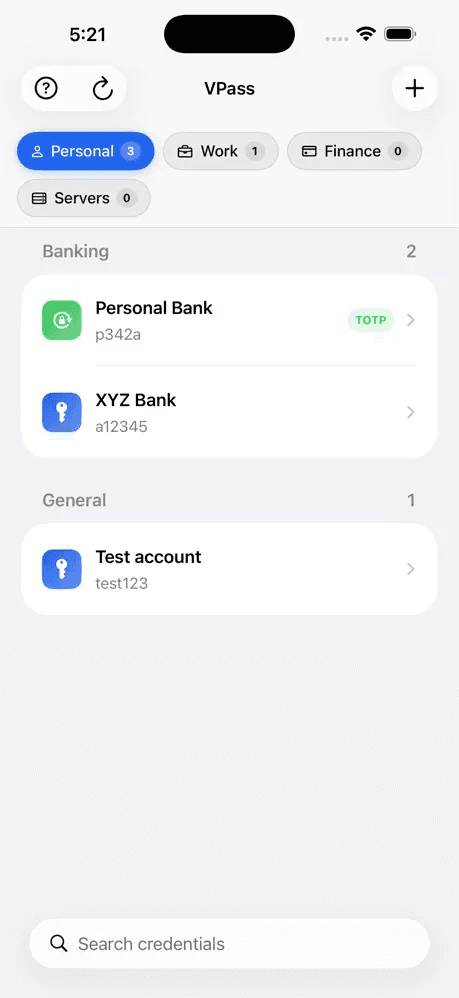
WhyMost logins happen at a desk. VPass lives in the menu bar with a quick search and one-click copy for username, password and code. Search is deliberately loose: “platform stage” finds “Stage platform core”.
HowCopied secrets are marked as concealed, so clipboard managers skip them, and cleared after 40 seconds unless you’ve copied something else since.
Organise the way I think, and track expiry
WhyFour fixed tags (Personal, Work, Finance, Servers), then groups inside each, like a project or a bank. Credentials can carry an expiry date in both apps, and the Mac app sums up what’s expired, what’s coming up and what never expires.
Backups I control
WhyIf iCloud ever fails me, I still want my secrets. VPass writes a current and a previous encrypted backup automatically after every change, and can export a one-off file to store anywhere.
HowAES-GCM encryption, with the key derived from a backup password through PBKDF2-HMAC-SHA256 (210,000 iterations, random salt). Restores only add or update credentials; they never delete anything.
Trade-offLose both the Keychain item and the backup password, and the backup can’t be recovered. That’s the price of it being genuinely private.
Ship the Mac app myself
WhyThe Mac app is distributed directly through GitHub releases, so the release pipeline was mine to build. The app and its disk image are signed with a Developer ID, notarized by Apple and stapled, so they open without warnings. Updates arrive in-app through Sparkle, with small delta updates between versions.
Trade-offMore to own than the App Store: signing, notarization and the update feed. In return I can ship a fix the same day.
How a credential is stored
The core of the security model is a handful of Keychain attributes:
kSecClass:              kSecClassGenericPassword
kSecAttrSynchronizable: true                            // synced by iCloud Keychain
kSecAttrAccessible:     kSecAttrAccessibleWhenUnlocked  // unreadable while the device is locked
kSecAttrAccessGroup:    "com.varunsuryawanshi.vpass.shared"  // one vault for iPhone and Mac
Five days to build, four to approve
Requirements written up as a case study; project started.
Mac 1.0.0: the vault, 2FA codes, iCloud Keychain sync, encrypted backups, menu-bar search. 1.0.1 the same day.
Mac 1.0.2.
Through App Store review: live for iPhone, iPad and Vision Pro.
Mac 1.0.3: auto-lock, automatic backups after every change, clipboard clearing, and fixes for real daily use.
Where it is now
Unit tests cover backups, search, the Keychain vault and 2FA code generation. The iPhone app is free on the App Store; the Mac app updates itself from GitHub. I’ve never advertised either, and it was never about downloads: it’s the app I use every day, and proof that a well-framed personal problem can become a real product without inventing any security of my own.